
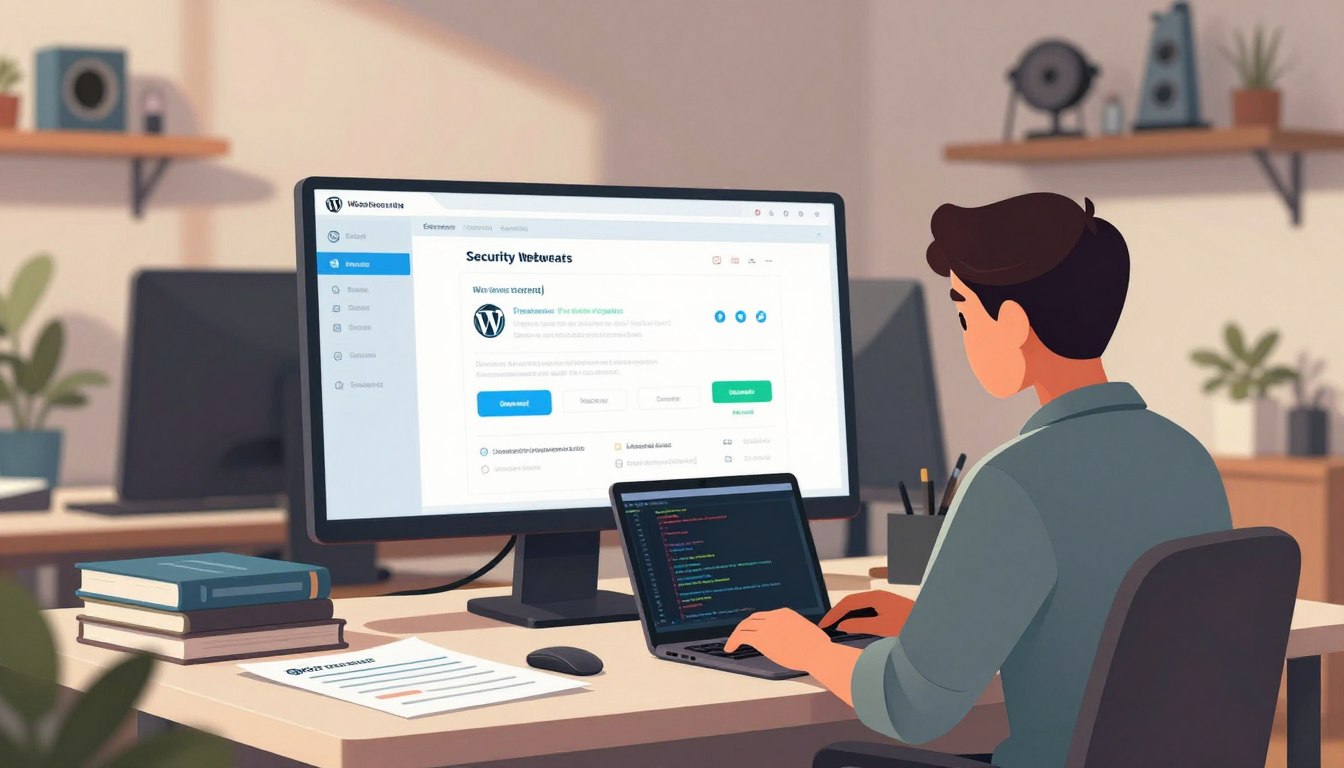




Discovering a breach in your online platform is very stressful. Immediate action is key to protect your data and keep your business running. Knowing the right steps helps you restore your site quickly, keeping downtime low for your visitors.

This WordPress site recovery tutorial shows you how to clean your files and secure your database. By using these professional methods, you’ll feel more confident in handling security issues. Learning these techniques helps you fix current problems and stop future unauthorized access to your digital assets.
Key Takeaways
- Identify the breach immediately to prevent further damage.
- Maintain regular backups to ensure a smooth restoration process.
- Update all themes and plugins to close known security gaps.
- Change all administrative passwords to lock out intruders.
- Monitor your server logs to detect suspicious activity early.
Assessing the Damage to Your WordPress Site
When you think your WordPress site has been hacked, it’s natural to feel scared. But, it’s important to stay calm and methodically check what happened. Knowing how the hackers got in and what they did helps you fix the problem.
Identifying Signs of a Compromise
Spotting a hack early can save you a lot of time. Site owners often notice something’s wrong when visitors report strange things or they can’t log in. Being alert is key to protecting your site’s reputation.
“Security is not a product, but a process that requires constant attention and proactive monitoring to remain effective.”
— Anonymous Security Expert
Here are some common signs your site has been hacked:
- Unexpected redirects to spam or malicious websites.
- New, unauthorized administrator accounts appearing in your dashboard.
- Sudden, unexplained drops in site performance or loading speeds.
- The presence of strange files or folders in your root directory.
| Symptom | Severity Level | Action Required |
|---|---|---|
| Unauthorized Admin | Critical | Immediate Removal |
| Spam Redirects | High | Code Cleanup |
| Performance Lag | Medium | Resource Audit |
Determining the Scope of the Infection
After confirming a breach, you need to figure out how bad it is. A hacked WordPress site might have hidden backdoors. These allow hackers to come back even after you change passwords. You must check your core files and database to make sure there’s no bad code left.
Good WordPress security means doing a full check of your site. Look at your theme and plugin files for any changes or suspicious code. Knowing the full extent of the attack helps you fix it right and for good.
Keeping your WordPress site safe means being careful and thorough. Always think that if one file is hacked, others might be too. This careful approach is crucial for fixing your site completely.
Preparing for the Recovery Process
Before you start fixing a hacked WordPress site, it’s important to plan carefully. Rushing into the cleanup can lead to losing data or making things worse. By preparing well, you can try different solutions safely, without harming your live site.
Backing up Existing Files and Databases
Even if your site is hacked, make a full backup of files and databases right away. This backup is your critical reference point for your investigation. You’ll need it to compare infected files with clean ones to find out what was changed.
Here’s how to make sure your backup is complete:
- Download all files via FTP or your hosting file manager.
- Export your entire database using tools like phpMyAdmin.
- Store these files in a secure, offline location.
- Label the backup clearly so you don’t mix it up with clean versions later.
Setting Up a Local Staging Environment
Working on your live server is risky when dealing with a hacked WordPress site. Instead, create a local staging environment on your computer. This lets you test cleanup scripts and plugin removals safely, without affecting your visitors.
To create your local environment, use software like LocalWP or XAMPP. These tools mimic a live web server, giving you the PHP and MySQL support you need. Once your site is running offline, you can safely:
- Isolate malicious code without affecting the public-facing site.
- Test theme and plugin updates to see if they fix vulnerabilities.
- Check that your database works after manual cleaning.
By working on your local machine, you can troubleshoot complex issues safely. This careful approach ensures you’re confident in the site’s integrity when you update the live server.
How to Recover a Compermized WordPress Website Using Backups
When your WordPress site gets hacked, the first thing to do is use a clean backup. This method saves you from hours of checking code manually. It brings your site back to a safe and working state fast.
Restoring Files from a Clean Backup
Start by deleting all files on your server. This stops any bad scripts from causing trouble. Then, upload your clean files from a safe backup. Make sure the backup was made before the hack.
After uploading, check your file permissions. This step stops unauthorized access. Using WordPress backup restoration saves a lot of time and effort. It removes any hidden threats in your theme or plugins.
Importing a Clean Database Version
Even with clean files, hackers can still harm your database. You need to replace your current database with a clean one from your backup. This removes any spam or unauthorized access.
Always check your database after importing. WordPress backup restoration keeps your site safe. But, always double-check the results right away. By doing this, you get your site back to normal and avoid future problems.
Manual Cleanup of Malicious Code
When your site gets hacked and you don’t have backups, you must act fast. Malware removal needs a careful plan to remove all traces of the attack from your server.
“Security is not a product, but a process.”
Bruce Schneier
By taking charge of cleaning up, you can make your site safe again. This careful work is key to keeping your WordPress plugins secure.

Scanning Core WordPress Files
First, check if your core files are okay. Compare them to a fresh WordPress download from the official site.
Use a file comparison tool to spot any changes. If you find any, replace them with clean versions from the official source right away.
Cleaning Infected Themes and Plugins
Themes and plugins are often where hackers start. A WordPress theme infection might add code that sends visitors to bad sites.
Check your themes and plugins by looking at file modification dates. If a file was changed recently without you knowing, it’s likely infected.
Identifying Suspicious PHP Scripts
Attackers often hide bad code in PHP files that look normal. Look for functions like base64_decode, eval, or gzinflate. These are signs of hidden dangers.
These scripts can do bad things on your server. Check any file with these functions to see if it’s safe or not.
Removing Hidden Backdoors
Backdoors let hackers get back in even after you fix the problem. They might look like system files or hide in your media folder.
- Look for files with strange names or random characters.
- Check your wp-config.php file for unwanted code.
- Remove any files you don’t recognize in your uploads folder.
After removing these files, your site will be much safer. Remember, staying alert is the best way to keep threats away.
Database Sanitization and User Management
After cleaning files, focus on your website’s core: the database. Hackers often target it to gain access or spread spam. A detailed WordPress database cleanup is key to remove hidden threats.
Removing Unauthorized Administrator Accounts
Hackers often create unauthorized admin accounts. These give them permanent access, even after you change your password. It’s crucial to check your user list for any suspicious activity.
Here’s how to protect your users:
- Go to the Users section in your dashboard and check every account.
- Remove any accounts you don’t know or were created without your permission.
- Make sure only trusted people have admin roles.
- If you spot something odd, reset passwords for all good users.
Checking for Malicious Database Injections
Attackers also inject harmful code into your database. This can lead to redirects, ads, or stolen data. A thorough WordPress database cleanup means scanning for these threats.
Look out for these signs:
- Unexpected scripts or iframes in posts or comments.
- Changes in site settings that point to bad domains.
- Unusual database entries that don’t fit your site’s usual structure.
Good WordPress user management and regular database checks lower breach risks. Stay alert to keep your site safe and your visitors secure.
Resetting Credentials and Access Keys
Even after cleaning your site of malware, your digital door is still open if attackers have your keys. Malicious actors often steal credentials during an infection, letting them come back whenever they want. The only way to ensure a secure WordPress login for your team is to quickly change these access points.

Updating WordPress User Passwords
You must reset all user passwords on your website. This includes admins, editors, and contributors who might have been hacked. By setting new, strong passwords, you block any unauthorized users who were hiding in your system.
Make sure everyone uses a unique password that’s not used elsewhere. A good password manager can help your team create and keep these passwords safe. This simple step greatly reduces the chance of future unauthorized access.
Regenerating Security Salts and Keys
WordPress uses special keys to encrypt data in browser cookies. These WordPress security salts add a secret layer of protection. If an attacker has your session cookies, they can skip the login screen.
Visit the official WordPress secret-key generator to get new values. Replace the old keys in your wp-config.php file. This action makes all current user sessions invalid, forcing everyone to log in again with their new passwords.
Resetting FTP and Hosting Control Panel Access
Hackers often target your hosting to get deeper into your server files. If they have your FTP or control panel passwords, they can get around WordPress security to add bad code. You must change these passwords right away through your hosting provider’s dashboard.
Here’s a table to show which access points need your quick attention during recovery:
| Access Point | Risk Level | Action Required |
|---|---|---|
| WordPress Admin | Critical | Force Password Reset |
| FTP/SFTP | High | Update Credentials |
| Hosting Panel | Critical | Enable 2FA & Reset |
| Database User | High | Rotate Password |
Always check that your hosting account has multi-factor authentication. By securing these secondary entry points, you build a strong defense against future attacks.
Scanning and Removing Malware with Security Plugins
Automated security tools are your last defense when cleaning a hacked website. They help ensure no hidden threats are left behind. Using these tools is key for effective malware removal and keeping your site safe.
Choosing Reliable Security Tools
Choosing the right plugin is crucial for a secure site. Look for tools with real-time threat alerts and regular updates. Top choices include Wordfence, Sucuri, and iThemes Security, known for their strong protection.
When picking a tool, check for features like firewalls, file monitoring, and scheduled scans. A good plugin should be fast and catch complex threats. Consistency is key in site security.
“Security is not a product, but a process. Automated tools are the engine that keeps that process running efficiently every single day.”
Running Deep Scans for Malware Signatures
With a trusted plugin installed, run a detailed WordPress malware scan. This scan checks your files against a huge database of known threats. It’s crucial for finding hidden, complex threats.
Make sure to scan all core files, themes, and plugins for unauthorized changes. If a file is flagged, review the report before acting. Many plugins let you automatically repair infected files easily, speeding up recovery.
| Security Plugin | Core Features | Best For |
|---|---|---|
| Wordfence | Endpoint Firewall, Live Traffic | Comprehensive Protection |
| Sucuri | Cloud WAF, Remote Scanning | External Threat Detection |
| iThemes | Brute Force Protection | User Access Control |
After scanning, check that all threats are gone. If issues persist, you might need to dig deeper into your database. Staying vigilant keeps your site safe from future threats.
Verifying Site Integrity and Performance
After cleaning up, focus on checking your site’s health. Keeping your WordPress site integrity strong is key. It keeps visitors safe and your search rankings high.
Checking for Redirects and Spam Content
Bad actors might leave scripts that redirect or add spam. Look through your site’s header and footer files for any unwanted code. Carefully reviewing your site’s code can spot hidden problems.
Also, check your database for any unexpected content. Removing it quickly is crucial for your WordPress site performance. It helps avoid security issues with search engines.
Testing Site Functionality After Cleanup
After cleaning files, check if everything works right. Test your contact forms, checkout, and login pages. Consistent testing finds any setup mistakes.
Also, watch your site’s speed and server times. A fast, responsive site wins back your audience’s trust. Slow sites? Check your plugins and themes for optimization and security.
Communicating with Search Engines and Visitors
Being open is key to recovering from a security breach. After cleaning up your files and securing your database, you need to win back trust. Not talking openly can make your site seem suspicious, hurting your traffic and reputation.
Requesting a Google Search Console Review
If search engines flagged your site, you might have seen warnings. To fix this, use Google Search Console security tools to ask for a review. This tells Google you’ve fixed the problem.
Go to the “Security Issues” report in your dashboard to see the threats. After checking your site is clean, click to request a review. Be patient, as Google will check your site’s safety for a few days.
Notifying Users About the Security Incident
Being honest is crucial when a security breach happens. If user data was at risk, you must tell them quickly. Being open helps keep long-term trust and shows you value their privacy.
Write your notification clearly and briefly. Explain what happened, how you fixed it, and what users should do next. This helps follow data protection laws and shows you’re transparent and accountable.
Hardening Your WordPress Site Against Future Attacks
By taking proactive steps, you can greatly lower the risk of future attacks. Using WordPress site hardening techniques is key to keeping your site safe. These methods create a strong defense against cyber threats.
By focusing on proactive measures, you make your site less appealing to hackers. This protects your important data from unauthorized access.
Implementing Two-Factor Authentication
WordPress two-factor authentication is a powerful tool. It asks for two forms of ID before letting you into the dashboard. This makes it hard for hackers to get in, even if they guess your password.
Make sure to use this for all admin accounts right away. Many plugins make it easy to add this feature to your site. Consistency is key when it comes to managing access.
Restricting File Permissions and Access
Setting the right WordPress file permissions is crucial. It limits what hackers can do if they get into your server. You should set directories to 755 and files to 644 for the best security.
You can also block access to sensitive paths using server config files. This stops hackers from running scripts or seeing hidden files. Restricting access blocks common hacker entry points.
Keeping Software Updated Automatically
Keeping your WordPress, themes, and plugins up to date is vital for security. Developers often release patches to fix vulnerabilities. Automatic updates ensure your site gets these fixes right away.
If you don’t want to update everything automatically, consider managed hosting. Staying current is the best way to avoid known exploits. A well-kept site is much harder to hack than an outdated one.
Conclusion
Getting your website back after a hack takes time and a careful plan. This guide is your main tool to get your site back in shape.
Keeping your site safe is a constant job, not just a one-time thing. You protect your brand by always updating and watching your server logs for odd signs.
Save this guide for when you need it again. Regular backups and strong login systems are key to a strong online presence.
Share these tips with others to help make the internet safer. When everyone looks out for their sites, the web is a better place.
Your hard work in keeping your site clean makes visitors trust you more. Keep improving your security to fight off new online dangers.
FAQ
What are the immediate signs that my WordPress website has been compromised?
Signs of a security breach include unexpected website redirects and unauthorized admin accounts. You might also see strange content or a “This site may be hacked” warning from Google. Spotting these signs early is key to fixing your WordPress site.
Why should I back up my files if the site is already infected?
Backing up your site, even if it’s infected, is crucial. It helps you restore your content and prevents further data loss. Tools like UpdraftPlus or Jetpack can help you save your data before fixing your site.
What is the fastest way to recover a compromised WordPress website?
The quickest fix is to restore from a clean backup. Replace your files with good versions from before the hack. Most hosting services, like Bluehost or SiteGround, offer automated backup restoration to reduce downtime.
How do I manually remove hidden backdoors from my themes and plugins?
To remove malware, scan your files for suspicious scripts. Compare them with official WordPress versions. It’s safer to delete and reinstall infected folders to avoid hidden backdoors.
Why is it necessary to regenerate WordPress security salts and keys?
Regenerating security salts invalidates hacker sessions. This forces them to log out. It’s also important to reset passwords and update FTP and cPanel credentials for extra security.
Which tools are recommended for running a deep malware scan?
Tools like Wordfence Security and Sucuri Security are top choices. They scan for malware and compare files with official WordPress versions. These scanners catch what manual checks might miss, offering strong site monitoring.
How do I remove the “This site may be hacked” warning from Google search results?
After cleaning your site, log into Google Search Console. Go to the “Security Issues” report and request a review. Explain how you fixed the issues. Once Google confirms, the warning will be removed, improving your SEO.
What are the best practices for hardening a WordPress site against future attacks?
To protect your site, use Two-Factor Authentication (2FA) and manage file permissions. Make sure WordPress and its components update automatically. A Web Application Firewall (WAF) from Cloudflare can also block malicious traffic.
Leave a Reply