
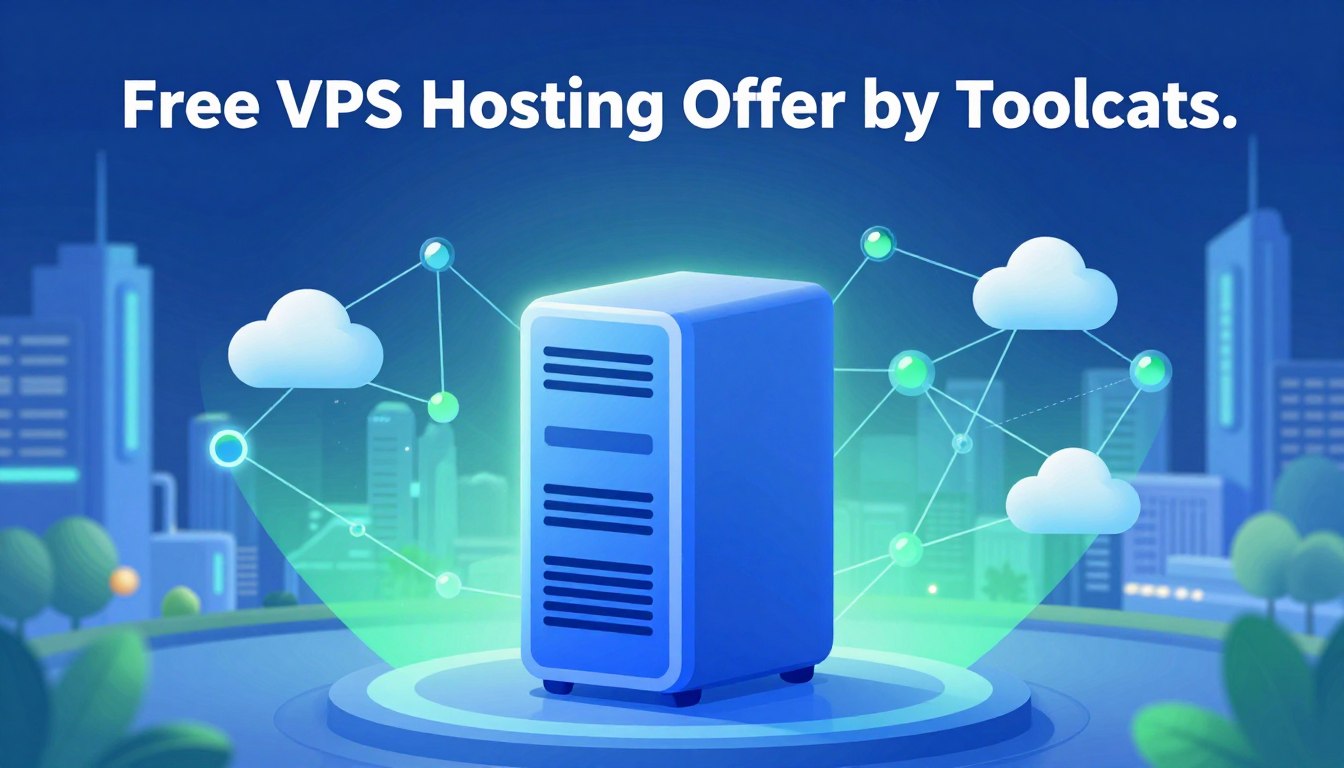




Are you ready to start your first virtual project without spending a dime? The Free Vps Hosting Offer By Toolcats gives you access to top-notch servers for free. It’s perfect for developers and students who want to try out advanced server tools for 30 days.

Sign up today and skip the credit card step. This seamless experience lets you dive into your projects without any hassle. It’s great for both newbies and experienced coders, making it easy to get started.
Our detailed Cloud hosting tutorial is your first step. We’ll walk you through setting up your environment. This hands-on learning will help you unlock your digital ideas with reliable, fast resources.
Key Takeaways
- Access professional infrastructure for 30 days without any financial commitment.
- Enjoy a simple sign-up process that requires no credit card information.
- Gain valuable hands-on experience with server management and deployment.
- Benefit from a transparent service model with absolutely no hidden charges.
- Utilize our expert-led tutorials to master your virtual environment quickly.
Understanding the Value of Windows VPS Hosting
Windows VPS hosting is a bridge between local development and production. It gives developers control over their software stack without managing physical servers. This makes it easier to work on projects.
A virtual private server is like a sandbox for testing new setups. It keeps your main machine clean while you test complex setups.
Benefits of Virtual Private Servers for Developers
Developers need consistent performance, which shared hosting can’t offer. With a VPS, you get guaranteed resources like dedicated CPU and RAM. This stops apps from slowing down due to other users.
These scalable server solutions also grow with your project. You can start small and upgrade easily as your needs change.
Why Windows Environments are Essential for Specific Applications
Many big apps are built for Windows. If your project needs .NET, MSSQL, or Windows services, a Linux server won’t work.
A proper Windows environment setup makes sure your software works well. It avoids bugs and slowdowns that come with emulation layers.
“The best way to predict the future is to create it.”
— Peter Drucker
The Importance of Testing Before Committing to Paid Plans
Test your app in a live environment before committing to a hosting plan. This checks for issues that might not show up locally.
Use a trial period to tweak your settings. This ensures your Windows environment setup is just right. It saves time and avoids costly downtime later.
Exploring the Free Vps Hosting Offer By Toolcats
The Free VPS Hosting Offer By Toolcats is a great way for developers to start their projects right away. It offers a top-notch environment for testing apps without the usual cloud industry hurdles.
Analyzing the 30-Day Trial Structure
The heart of this offer is a 30-day trial with full access to Windows server features. During this free hosting trial, you can check how well your apps perform, how they work with other software, and their speed in real use.
- Full administrative access to the server.
- Compatibility with standard Windows-based software.
- Dedicated resources for your specific testing needs.
Why No Credit Card Requirements Matter
This platform stands out because you don’t need a credit card to start. This means no worries about auto-renewals or surprise bills that can happen with other services. It lets you focus on what you need technically without financial stress.
Security and trust are key here. Your personal financial info is never asked for when you first sign up. This lets you explore and test without any worries.
Transparency in Pricing and Absence of Hidden Charges
Clarity is crucial in cloud services, and this offer is all about honesty. There are no hidden charges during the trial, so you won’t face unexpected fees for basic use or standard setups.
“Transparency is the cornerstone of a healthy relationship between a service provider and the developer community.”
This promise of clear service means you can trust the value it offers. You can grow and scale your projects knowing exactly what you’re getting from the infrastructure.
Preparing Your Environment for VPS Deployment
Getting your local device ready is key for server management. Before starting your VPS deployment, make sure your local machine is ready. This step helps avoid common problems and makes the transition smoother.
System Requirements for Remote Desktop Access
Your local computer must meet basic software standards for remote desktop access. Most operating systems have built-in tools. But, make sure your client is up to date.
- Ensure your operating system supports the latest RDP protocols.
- Verify that your local firewall allows outgoing connections on port 3389.
- Check that your display settings are configured to support high-resolution remote sessions.
Ensuring Stable Internet Connectivity
A stable network connection is crucial for a successful Windows environment setup. Internet speed issues can cause lag or disconnections during important tasks.
Using a wired Ethernet connection is best to reduce latency. If Wi-Fi is your only option, stay close to your router for a strong signal.
Setting Up Necessary Security Protocols
After accessing your instance, setting up strong server security protocols is essential. Protecting your data starts with securing your environment against unauthorized access and vulnerabilities.
Always follow these important security steps right after logging in:
- Change the default administrator password to a complex, unique string.
- Enable multi-factor authentication if your provider supports it.
- Run all pending system updates to patch known security gaps.
- Configure the Windows Firewall to restrict access to trusted IP addresses only.
Step-by-Step Registration Process at Toolcats
Starting your 30-day free hosting trial at Toolcats is quick and easy. You don’t need to spend any money. This cloud hosting tutorial will show you how to set up your server fast. The whole platform is designed to be easy to use and clear.
Accessing the Official Toolcats Website
First, go to the official website at www.toolcats.com. Look for the big sign-up button in the top menu. Click it to start your journey at the secure registration portal.
Creating Your Account Without Financial Information
You don’t need a credit card to start. Just give a valid email and a strong password. This way, you can try out the server without any surprise costs.
Verifying Your Identity and Account Activation
After you sign up, you’ll need to verify your identity. This keeps your account safe. After confirming your email and finishing the verification, your account will be ready. You won’t face any hidden charges during your trial.
| Feature | Toolcats Trial | Traditional Hosting |
|---|---|---|
| Financial Info | Not Required | Required Upfront |
| Setup Speed | Instant | Delayed by Billing |
| Hidden Fees | None | Often Present |
| Trial Duration | 30 Days | Limited or None |
Navigating the Toolcats User Dashboard
Once your account is active, the Toolcats user dashboard is your main hub. It makes cloud management easy, so you can focus on your projects. It’s designed for everyone, making VPS deployment simple.
Overview of the Control Panel Interface
The control panel is simple and easy to use. It has a menu on the side for services, billing, and security. This makes finding tools quick and easy.
“Efficiency is doing things right; effectiveness is doing the right things.”
Peter Drucker
Managing Your Active VPS Instances
Managing your virtual machines is easy in the dashboard. You can start, stop, or reboot servers with one click. This control is key for scalable server solutions that grow with your business.
The table below shows the main management features:
| Feature | Functionality | Benefit |
|---|---|---|
| Power Controls | Start, Stop, Reboot | Instant state management |
| Console Access | Browser-based terminal | Direct server interaction |
| Instance Scaling | Resource adjustment | Flexible growth options |
| Snapshot Tool | Backup creation | Data safety and recovery |
Monitoring Resource Usage and Performance Metrics
Keeping an eye on VPS resource monitoring is crucial. The dashboard shows real-time graphs for CPU, RAM, and disk I/O. This helps spot issues before they affect your apps.
Proactive monitoring lets you adjust your server based on actual data. If you see high usage, you can tweak settings to keep things stable. This is how pros manage servers.
Connecting to Your Windows VPS via Remote Desktop
Getting a stable connection to your server is key. Once it’s up and running, you can use Windows VPS hosting to run apps or manage data from anywhere.
Remote desktop access gives you a graphical interface for your server. Follow these steps for a smooth transition from setup to management.

Configuring Remote Desktop Connection on Windows
Windows users have a built-in tool called Remote Desktop Connection. Just search for it in your Start menu and open it.
Put the IP address from your dashboard into the computer field. Click “Connect” to start the connection between your machine and the server.
Using RDP Clients on macOS and Linux
For macOS or Linux, you need to set up an RDP client configuration with third-party software. Options include Microsoft Remote Desktop for macOS or Remmina for Linux.
These tools work like the Windows version. Just enter your server’s IP address and adjust the display settings for the best experience.
Authenticating Your Session with Provided Credentials
After connecting, a security prompt will ask for your login details. Use the username and password from your initial setup to access your Windows VPS hosting.
Keep your credentials safe to protect your server. Once logged in, you’ll see the Windows desktop ready for your tasks.
| Operating System | Recommended Tool | Ease of Use |
|---|---|---|
| Windows | Native RDP | High |
| macOS | Microsoft Remote Desktop | High |
| Linux | Remmina | Medium |
Proper RDP client configuration is crucial for a stable connection. If problems arise, check your local network settings for outbound traffic on the standard RDP port.
Best Practices for Managing Your Free VPS Instance
Keeping your virtual private server stable needs a proactive plan. After setting up, focus on security and efficiency. Good Windows server management is key for a reliable hosting experience.
Securing Your Windows Server Environment
Start by setting up strong server security protocols. Change default passwords to strong, unique ones to block unauthorized access. Make sure your firewall blocks unwanted incoming traffic.
Turn off unused ports and services to lower your risk. Check your security logs often to spot threats early. These steps make your server safe for your apps.
Installing Essential Software and Updates
Keeping your OS up to date is vital for Windows server management. Install security updates and patches to fight off known threats. These updates also boost your system’s performance.
Only add software you really need. Too much can slow down your server. Regular upkeep keeps your server reliable for your projects.
Optimizing Performance for Your Specific Workload
Watch your VPS resource monitoring closely. This lets you see how your apps use your hardware. By tweaking settings based on this data, your virtual private server will run better.
If you see high usage, tweak your background tasks or database queries. Efficiency is crucial in managing a remote server. Stay on top of resource use to keep your server fast and capable.
Troubleshooting Common Initial Setup Issues
Starting your server deployment can sometimes need extra help. Our platform is easy to use, but you might hit a few bumps early on. Knowing how to do VPS troubleshooting is key to keeping things stable from the start.

Resolving Connection Timeouts
Connection timeouts often mean your internet is weak or unstable. This stops the RDP client configuration from connecting to the server. Make sure your firewall isn’t blocking the RDP port.
It’s possible the server is still setting up after booting. Wait a few minutes before trying to connect again. If you still can’t connect, check if your IP address is blocked by security software.
Handling Authentication Errors
Authentication errors usually come from small mistakes in your login details or server identity verification. Always check your username and password against your account portal. Remember, these fields are case-sensitive, so make sure Caps Lock is off.
If you keep getting errors, try clearing your saved login info in your remote desktop app. Manually entering your login details again can fix issues caused by old or cached data. Consistency is key when managing your login credentials to avoid getting locked out.
Addressing Initial Configuration Glitches
Minor display or performance issues might pop up when you first use the Toolcats user dashboard. These are usually temporary and can be fixed by refreshing your browser or clearing your cache. A clean interface is important for effective Windows server management.
If a service won’t start, try rebooting the instance from the control panel. If you’re still having trouble, our support is here to help. Being patient during these early stages will make your experience smoother later on.
Conclusion
The Toolcats platform is a special place for developers to dive into top-notch cloud infrastructure. With the 30-day trial, you get to use a strong Windows environment without spending a dime upfront.
This trial time is great for testing your digital projects. You can improve your tech skills and learn how to fix VPS problems in real life. Getting hands-on experience is the best way to learn for any system admin.
The platform is known for being reliable and fast. You can set up apps and test settings with confidence. Plus, there are no hidden fees, so you can focus on your projects without worry.
Sign up now to start your adventure. Create your next big project on a solid base for growth and innovation. Taking this first step is all you need to begin your journey in server management.
FAQ
How long does the free trial period last for the Toolcats VPS offer?
The Free VPS Hosting Offer By Toolcats lets you try a Windows VPS hosting for a full 30-day trial. This is great for developers and students to learn server management without spending money.
Do I need to provide a credit card to sign up at www.toolcats.com?
No, you don’t need a credit card to start your trial. Toolcats is upfront, with no hidden charges during or after signing up. It’s a safe way to try cloud hosting.
Which operating system is provided with this free hosting offer?
This offer is for Windows VPS hosting. It’s perfect for those needing a Windows environment setup. This is for running .NET frameworks or Windows-based enterprise software.
How do I connect to my Windows VPS instance once it is active?
Use Remote Desktop Protocol (RDP) to connect. Windows users can use the Remote Desktop Connection tool. Users on macOS or Linux can use RDP client configuration tools with the Toolcats credentials.
Can I monitor my server’s performance during the 30-day trial?
Yes. The Toolcats user dashboard has a control panel for managing active VPS instances. It has tools for VPS resource monitoring. You can track performance metrics in real-time.
What should I do if I experience connection timeouts or authentication errors?
For issues, check the VPS troubleshooting guide in the dashboard. Problems like connection timeouts or initial configuration glitches can be fixed by checking your server identity verification or ensuring your network supports remote desktop access.
Is this service suitable for professional software testing?
Absolutely. Many developers use Toolcats for testing before committing to paid plans. It offers a top-notch virtual environment for deploying and tuning apps. It ensures your Windows server management and software configurations meet your needs before scaling up.
Are there any specific system requirements to use the Toolcats VPS?
You need a stable internet connection for a smooth RDP session. Also, be ready to set up basic server security protocols like installing essential software updates and patches right after your account is activated.
Leave a Reply